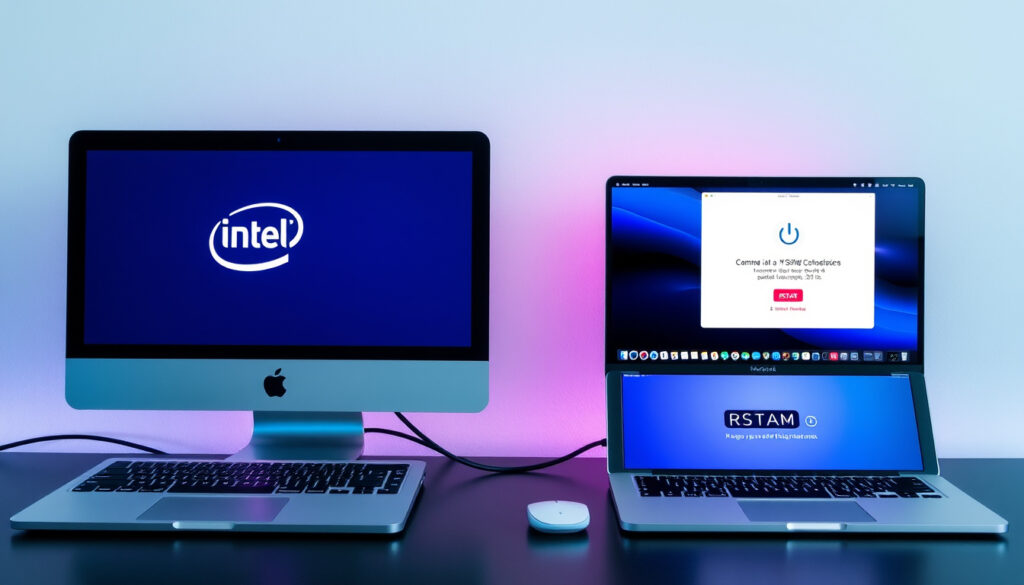
How to Reset PRAM and SMC on Your Mac: Intel & Apple Silicon
If your Mac starts acting up—fans spinning for no reason, Wi-Fi dropping randomly, or the screen acting stubborn at startup—a quick PRAM or SMC reset is often the fix you need. The catch: Intel Macs and Apple Silicon machines use completely different procedures, and using the wrong one won’t help.
PRAM/NVRAM reset keys: Option + Command + P + R ·
SMC reset for laptops: Power button for 10 seconds ·
Apple Silicon NVRAM: Automatic on restart ·
Intel SMC variants: 3 methods by model
Quick snapshot
- PRAM/NVRAM stores startup settings, volume, displays (Apple Support)
- SMC manages power, fans, keyboard lights on Intel (SaaS Genius)
- Reset affects only settings—no files lost (Eclectic Light Co)
- Wi-Fi fix effectiveness varies by root cause (Apple Discussions)
- Success rates for specific hardware issues not publicly tracked (Apple Discussions)
- SMC introduced with Intel in 2006
- PRAM chime disabled on 2016+ MacBook Pro
- T2 models active 2018–2020
- Apple Silicon launched November 2020
- Follow the model-specific steps below
- Reconfigure settings after NVRAM reset
- Seek Apple Support if issues persist
These procedures apply differently depending on your Mac’s processor. Intel machines require manual key combinations or power-button holds, while Apple Silicon Macs handle most resets automatically.
| Setting scope | Details |
|---|---|
| PRAM/NVRAM scope | Startup settings, volume, displays |
| SMC scope | Hardware controls, power management |
| Intel PRAM method | Option + Command + P + R held 20 seconds |
| Apple Silicon method | Automatic on restart—no key combo |
| Data impact | Settings only—no files lost |
How to reset the SMC and PRAM?
The exact reset procedure depends on which chip your Mac runs. First, check your Mac type: open Apple menu > About This Mac. If you see “Chip” with an M-series name, you have Apple Silicon. If you see “Processor,” you’re on Intel.
PRAM/NVRAM reset for Intel Macs
The official key combination is Option + Command + P + R, held for approximately 20 seconds until the startup chime plays twice or the Apple logo appears and disappears twice (Apple Support). On 2016 and later MacBook Pro models, Apple disabled the chime by default, so watch for the logo cycle instead. On T2-equipped Intel Macs (roughly 2018–2020 models), release the keys immediately after two chimes—holding longer may not trigger a reset (Apple Discussions).
Firmware passwords set in Recovery Mode will block NVRAM resets. Disable the password first, or the key combo does nothing.
SMC reset for Intel Macs
Intel-based Macs have three distinct SMC reset methods depending on your model:
- Laptops with T2 chip (2018–2020 MacBook Pro/Air): Shut down, hold the power button for 10 seconds, release, wait 5 seconds, then press power again (ExpressVPN).
- Laptops without T2 (mid-2009–2017): Hold the left-side Shift + Control + Option keys plus the power button simultaneously for 10 seconds (ExpressVPN).
- Desktops without T2: Unplug the power cord, wait 15 seconds, plug back in, wait 5 seconds, then press power (ExpressVPN).
For 2016–2020 Intel Macs with T2, experienced users recommend resetting the SMC first, letting the Mac boot fully, then rebooting and resetting NVRAM separately. Doing both at once can leave the system in a stuck state.
Apple Silicon differences
On M-series Macs, the Intel key combo for NVRAM resets does nothing—literally. “Trying to reset NVRAM using the key combination for Intel Macs does absolutely nothing to an Apple Silicon Mac,” writes Howard Oakley, author at Eclectic Light Co (Eclectic Light Co). Apple Silicon NVRAM resets automatically during a normal restart if corruption is detected. For the SMC, simply shut down your Mac, disconnect the charger, wait 30 seconds, reconnect, and power on—no key combinations or unplugging required.
The pattern across reset scenarios is clear: for Intel Macs, model-specific procedures matter, and doing them in the right order (SMC first, then NVRAM) improves success rates on T2-equipped machines. For Apple Silicon, the reset is largely automatic—your main job is to avoid the temptation to try Intel-style key combos, which do nothing and can cause confusion.
How do you reset your PRAM?
The PRAM reset procedure is identical to NVRAM reset on Intel Macs. Shut down your Mac completely, then turn it on while immediately holding Option + Command + P + R. Keep all four keys pressed for roughly 20 seconds. You’ll know it worked when you hear the startup chime twice (on older Macs) or see the Apple logo cycle on and off twice (on 2016+ machines).
Verification after reset
After your Mac boots back up, check that your display resolution, sound volume, and selected startup disk have returned to default values. If they haven’t changed, the reset may not have completed—try the procedure again. Note that third-party kernel extensions and some preference settings will also revert to defaults and will need reconfiguration (Eclectic Light Co).
What does resetting PRAM and SMC do?
These two resets target different layers of your Mac’s firmware. PRAM and NVRAM store low-level parameters your Mac uses every time it boots: display resolution, sound volume, selected startup disk, time zone, recent kernel panic logs, and more. The SMC (System Management Controller) governs physical hardware behavior—fan speeds, keyboard backlight, sleep/wake behavior, battery indicator readings, and USB-C peripheral recognition on Intel models.
Common issues these resets address
- Wi-Fi dropping after sleep or restart
- Fan noise at idle with no heavy apps running
- Startup hangs or refusal to wake from sleep
- Incorrect battery percentage display
- Keyboard backlight not responding
- USB-C devices not being recognized (Eclectic Light Co)
What these resets do not do: they do not erase files, applications, or your operating system. They touch only stored preference values and hardware state registers. Apple introduced the SMC with the Intel transition in 2006, and it has no direct equivalent on Apple Silicon—Apple manages those functions at the operating system level instead (SaaS Genius).
Is it safe to reset PRAM on my Mac?
Yes. The reset touches only stored settings, not your data. “No data loss from PRAM/SMC reset; affects only system settings,” confirms research from Eclectic Light Co (Eclectic Light Co). You will need to rejoin your Wi-Fi network and reconfigure any custom settings afterward, but your files and applications remain intact.
When to skip the reset
Avoid resetting on Apple Silicon Macs using Intel-specific commands. Running nvram commands meant for Intel Macs on an M-series machine can prevent the system from booting. If that happens, you’ll need to boot into Recovery Mode to restore functionality, or in extreme cases, perform a full DFU restore that wipes the internal SSD (Eclectic Light Co).
What happens if I reset my SMC?
The immediate effects are hardware-focused. Fans may spin up briefly as they recalibrate, keyboard lights may reset to full brightness, and the battery percentage indicator will refresh. On Intel laptops, the power button behavior resets—you may see a brief “Charging” notification even with the adapter already connected. For more information on resetting your Mac’s PRAM and SMC, check out this Ynw Melly case music health wealth. Ynw Melly case music health wealth
Post-reset expectations
Your Mac will boot normally after an SMC reset. If the underlying issue was power-management related (stuck fan, battery reading stuck, USB-C ports unresponsive), the reset often resolves it within the first boot cycle. If problems return within days, the issue likely has a deeper cause—hardware degradation, software conflict, or a failing component—and it is time to contact Apple Support.
What we know and what remains unclear
Confirmed
- Intel NVRAM reset requires Option + Command + P + R held for 20 seconds
- Apple Silicon resets NVRAM automatically on restart—no manual steps
- Intel SMC has three distinct procedures by model type
- Resets affect only settings, not user data
- Intel key combos have zero effect on Apple Silicon
- PRAM chime disabled on 2016+ MacBook Pro by default
Unclear
- Success rates for specific issues (Wi-Fi, fans, battery) not publicly tracked
- Whether T2 reset order variations improve outcomes has limited peer-reviewed data
- Exact Apple Silicon NVRAM automatic reset triggers not officially documented
“For Apple Silicon Macs, PRAM/NVRAM resets automatically during a restart, so no manual steps are required.”
— Tech Instructor, YouTube Tutorial
“Trying to reset NVRAM using the key combination for Intel Macs does absolutely nothing to an Apple silicon Mac. The only way to set it back to factory condition is to perform a full restore in DFU mode, which also wipes the entire contents of the internal SSD.”
— Howard Oakley, Author at Eclectic Light Co
Related reading: What Is a VPN Router? How It Works, Setup & Worth It · Translate English to Hindi: Free Voice & Camera Guide
While Intel and Apple Silicon procedures differ slightly, the Japanese PRAM and SMC reset guideoffers clear steps for resolving startup and display glitches on any Mac model.
Frequently asked questions
How often should I reset PRAM and SMC?
Only when needed. These resets are troubleshooting steps, not routine maintenance. If your Mac is running normally, leave the settings alone.
Will resetting SMC fix battery issues?
It can fix battery percentage display errors and charging indicator glitches. Actual battery health degradation will not be resolved by an SMC reset—you’ll need to check Battery Health in System Preferences or contact Apple for hardware service.
What if the reset doesn’t work?
If issues persist after both SMC and NVRAM resets, the problem likely lies deeper—incompatible software, a failing hardware component, or macOS corruption. Boot into Recovery Mode to run First Aid, or contact Apple Support for further diagnosis.
What’s the difference between PRAM and NVRAM?
Functionally, none. PRAM (Parameter RAM) is the older name for the same component. Apple renamed it to NVRAM (Non-Volatile RAM) around the Intel transition, though the key combo retained “PRAM” in popular usage. Both store the same types of startup settings.
How do I reset the SMC on a Mac desktop?
For Intel desktops without a T2 chip: unplug the power cord, wait 15 seconds, plug it back in, wait 5 seconds, then press the power button. Apple Silicon desktops use a simple shutdown-and-restart cycle—no unplugging required.
Does SMC reset require battery removal?
On modern Macs with non-removable batteries, you cannot remove the battery yourself. The SMC reset procedure uses keyboard shortcuts or the power button, not physical battery access. Older Intel laptops with removable batteries (pre-2012 models) had different procedures—check Apple’s official documentation for your specific model year.
How do I reset PRAM on a MacBook Air?
On Intel MacBook Air models: shut down, then hold Option + Command + P + R while pressing the power button. Keep all keys pressed for about 20 seconds until you hear the chime twice or see the Apple logo cycle. On Apple Silicon MacBook Air, no manual reset is needed—the system handles it automatically on restart.
More related posts
 Emilia Clarke Movies and TV Shows: Full List & Ratings
 Forza Horizon 6 Release Date: May 19, 2026
 Pork Chops in Air Fryer: Cooking Times & Temperature Guide
 Best Dyson Vacuum Cleaner 2026: Top Models Compared & Reviewed
 Cars for Sale in Hamilton (UK & NZ): Under $5000 & $10000
 The Post Death Notices: A Complete Guide for Ireland
 Robert F. Kennedy – From Environmentalist to HHS Secretary
 1111 Angel Number Meaning: What Seeing 11:11 Really Means
