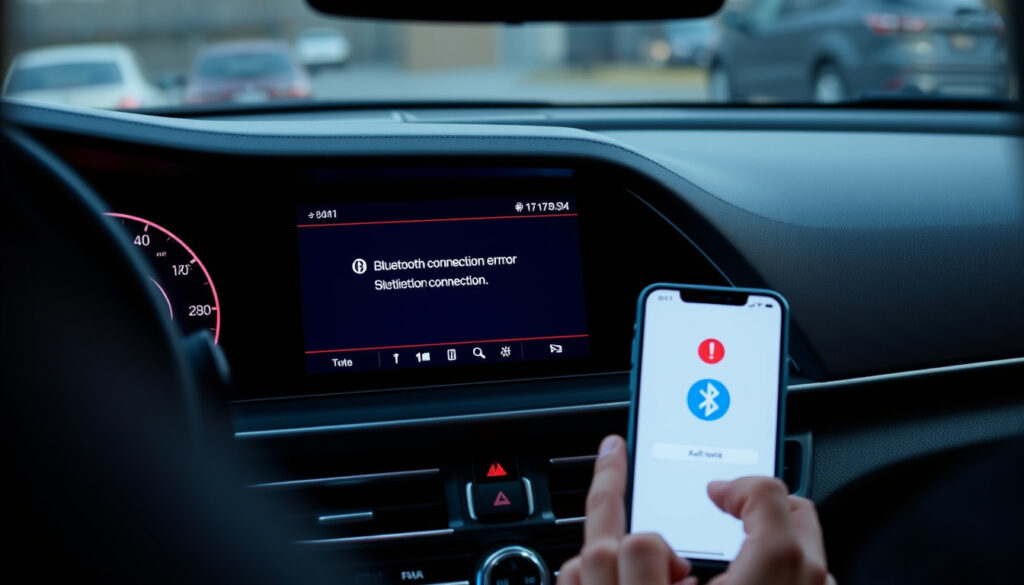
Bluetooth Not Connecting to Car: How to Fix It Fast
Few frustrations feel as immediate as your phone refusing to pair with your car—the call you needed is about to start, or your playlist is locked on silence. Most Bluetooth car hiccups trace back to a handful of predictable causes, and the fixes are usually straightforward enough to try before you ever touch a manual.
Primary fix: Restart devices · Phone and car infotainment · Check volume levels · On phone and car · Unpair and repair · Forget device in car settings · Consult car manual · For model-specific steps · Android workaround · Call then re-enable Bluetooth
Quick snapshot
- Restarting fixes most pairing issues (AutoZone)
- Model-specific reset sequences vary by carmaker (Ford Support)
- Post-update Bluetooth issues reported since the 2020s (Carlcare)
- Unpair and repair to clear corrupted pairing data (Ford Support)
Six key facts emerge across multiple sources: the first diagnostic step, the universal toggle action, the Android-specific path, and the car-specific reset language all converge on the same pattern—clearing stale pairing data and starting fresh.
| Field | Value |
|---|---|
| First step | Restart phone and car |
| Check this | Volume on both devices |
| Manual reference | Car’s Bluetooth section |
| Unpair method | From phone and car settings |
| Android path | Settings > Connected devices > Saved devices > Forget device |
| iPhone path | Settings > Bluetooth > tap ‘i’ > Forget This Device |
Why is my Bluetooth suddenly not connecting to my car?
Sudden disconnects usually stem from a few common triggers: a phone software update that altered Bluetooth behavior, accumulated pairing data corruption, or an infotainment system that simply needs a refresh. The first troubleshooting step for Android is to clear saved devices from your phone’s memory via Settings > Connected devices > Saved devices (Google Help official path). On the car side, you should also delete the phone from the car’s Bluetooth memory following the owner’s manual—especially if the devices were previously paired successfully.
Common causes
- Phone software update altered Bluetooth stack behavior
- Pairing data accumulated over months of connections
- Car infotainment system holding stale connection records
- Interference from other wireless devices nearby
Quick checks
- Confirm the car is discoverable before initiating pairing from your phone
- Check that other devices can connect to the car to isolate phone-specific issues
- Verify both the phone and car volume are turned up
- Toggle Bluetooth off and back on as a first reset move
Why is my car’s Bluetooth not working?
When Bluetooth is on but nothing connects, the problem often lies in settings conflicts or device compatibility rather than hardware failure. Bluetooth glitches can mimic hardware issues but are usually pairing problems underneath. The most effective starting point across Ford SYNC, Android, and iPhone is to turn Bluetooth off and then back on—a step Ford officially recommends for all SYNC generations before attempting deeper resets. If that doesn’t work, check whether other paired devices are creating conflicts; some infotainment systems limit the number of concurrent pairings, and removing an old phone or tablet can free up the connection.
Bluetooth glitches can look like hardware failure but are usually pairing problems. Before assuming your infotainment system is broken, clear the pairing data on both devices and start over.
Volume and settings checks
- Turn volume up on your phone and your car’s infotainment system independently
- On iPhone: Settings > Bluetooth > ensure the car shows “Connected” (not just paired)
- On Android: Settings > Connected devices > confirm the car’s Bluetooth profile is active
- Some cars require the media source to be set to Bluetooth before audio will play
Device compatibility
- Verify your phone’s iOS or Android version meets the car’s Bluetooth requirements
- Check for car firmware updates via the manufacturer’s support site
- If paired but silent, the issue may be the media source selector not set to Bluetooth
- Factory reset the car’s Bluetooth to factory settings as a last resort before assuming hardware failure
How do I fix the Bluetooth pairing problem?
Forgetting and re-pairing the device is the most reliable way to clear corrupted pairing data. On iPhone, navigate to Settings > Bluetooth, tap the ‘i’ icon next to your car, and select “Forget This Device.” Then restart your iPhone and put your car into pairing mode to reconnect fresh. For Android, the process involves clearing saved devices from your phone via Settings > Connected devices > Saved devices (Google’s recommended path) and simultaneously removing the phone from the car’s Bluetooth memory.
The implication: skipping the restart step after unpairing is the most common reason a second pairing attempt also fails. Ford’s SYNC documentation explicitly calls out this requirement for all generations.
Forget and re-pair steps
- iPhone: Settings > Bluetooth > tap ‘i’ > Forget This Device, then restart the iPhone
- Android: Settings > Connected devices > Saved devices > select car > Forget device
- Delete the phone from your car’s Bluetooth memory (car manual varies)
- Restart both devices, then put the car into discoverable mode
- On your phone, scan for new Bluetooth devices and select the car
Force connection
- If auto-connect fails, manually select the car from the phone’s Bluetooth device list
- Ensure the car stereo is set to the correct media source (Bluetooth Audio, not AM/FM)
- Some systems require a PIN entry—check your car manual for the default (often 0000 or 1234)
- After pairing, verify the car appears under “Paired devices” with a checkmark on your phone
How do I reset my car’s Bluetooth?
Resetting your car’s Bluetooth to factory settings clears all paired devices at once and gives you a clean slate. Use your owner’s manual or the steering wheel talk button to navigate to the Bluetooth settings menu and select the reset option—this is especially useful when you no longer have access to paired phones or when multiple stale connections are interfering. For Ford SYNC systems, the reset process varies by generation: SYNC 4A/4 includes a module reset and key cycle (restarting the vehicle by turning off and on the ignition), while SYNC 3 requires a module reset and key cycle as well. Older SYNC generations with MyFord Touch include a master reset option that clears all data.
What this means: Toyota owners should consult their specific manual, as reset paths vary across model years. Consult the car’s Bluetooth section of your owner’s manual for the exact menu path.
General reset
- Factory reset clears all paired devices—you will need to re-pair every phone and accessory
- Use the infotainment system’s Bluetooth settings menu or steering wheel controls
- Consult your car manual for the exact menu path, as varies by manufacturer
- After reset, the car will be discoverable for a limited window—pair devices promptly
Model-specific like Toyota
- Toyota: Typically found under Menu > Setup > Bluetooth > Reset Settings or Delete All
- Ford SYNC generations: See Ford Support’s generation-specific reset steps before attempting
- Consult the car’s Bluetooth section of your owner’s manual for the exact menu path
- After any factory reset, pair your primary phone first before reconnecting other devices
How to fix Bluetooth problems on Android?
Android-specific Bluetooth issues often respond to steps that differ from iPhone, and a handful of fixes are unique to the Android ecosystem. Google’s official help page recommends clearing saved devices from your phone via Settings > Connected devices > Saved devices before attempting to re-pair, and simultaneously removing the car from the car’s own Bluetooth memory. For persistent issues, reset network settings via Settings > System > Reset options > Reset Wi-Fi, Mobile & Bluetooth—but note that this erases saved Wi-Fi passwords and all Bluetooth pairings, so you will need to re-enter Wi-Fi credentials afterward.
Resetting network settings on Android erases your saved Wi-Fi passwords and all Bluetooth pairings in one step. Plan for 15–20 minutes re-entering credentials and re-pairing devices after using this option.
Android-specific steps
- Clear saved devices: Settings > Connected devices > Saved devices > select car > Forget device
- Delete phone from car’s memory via the car’s Bluetooth settings menu
- Reset network settings: Settings > System > Reset options > Reset Wi-Fi, Mobile & Bluetooth
- Note: Network reset removes saved Wi-Fi passwords—re-enter after troubleshooting
- Toggle Bluetooth off, make a call, turn Bluetooth back on if audio is missing despite connection
No sound issues
- Confirm the car’s media source is set to Bluetooth Audio (not USB or Aux)
- Check that the car’s volume is turned up independently from the phone
- Some Android phones require granting Bluetooth contacts and call audio permissions separately
- For Android Auto Wireless users: uninstall and reinstall the Android Auto app from Google Play Store
Steps to fix Bluetooth connection issues
Follow these steps in order. Most issues resolve by step three; the later steps address persistent or post-update problems.
- Toggle Bluetooth off and on on your phone as the universal first move—supported by AutoZone’s diagnostic guidance and Ford’s official SYNC troubleshooting.
- Power cycle both devices: Restart your phone and turn the car’s ignition off and on (key cycle for Ford SYNC systems).
- Unpair and re-pair: Forget the car from your phone settings, delete the phone from the car’s Bluetooth memory, restart both devices, and pair fresh.
- Reset network settings (Android: Settings > System > Reset options > Reset Wi-Fi, Mobile & Bluetooth; iPhone: Settings > General > Reset > Reset Network Settings).
- Factory reset car Bluetooth: Use the infotainment menu or steering wheel controls to reset to factory settings, then re-pair all devices.
- Check for software updates: Update your phone’s OS and the car’s infotainment firmware if the issue persists after all above steps.
AutoZone (auto parts and DIY repair resource) notes that before going deep into diagnosis, you should check basic pairing settings on both the phone and car. Most Bluetooth issues resolve at the simplest steps.
YouTube tech host Christopher recommends a full factory reset of the car’s Bluetooth as a last resort: “Reset the whole car to the factory settings, and that should get everything back up and running for you.”
Google Android support documentation specifies that the first troubleshooting step for Android Bluetooth issues is to clear saved devices from phone’s memory via Settings > Connected devices > Saved devices.
Clarity section
Across the verified sources, a clear pattern emerges: the majority of car Bluetooth problems are pairing-related, not hardware failures. The fixes are consistent across Android and iPhone with platform-specific navigation paths.
Confirmed
- Restarting fixes most cases per AutoZone
- Bluetooth toggle is the universal first step across Ford SYNC generations
- Clear saved devices resolves Android pairing issues per Google Help
- Ford SYNC unpairing requires restart of both vehicle and phone
- Factory reset of car Bluetooth requires re-pairing all devices
Unclear
- Exact reset sequence varies by carmaker—manual consultation required
- Success rates of individual fixes not quantified in available sources
- Post-update Bluetooth issues may require software rollback when no other fix works
Summary
Car Bluetooth connection issues rarely require professional service—the fixes are usually in the settings menus of your phone and your car’s infotainment system. Start with a Bluetooth toggle and restart; if that fails, clear the pairing data on both sides and re-pair fresh. For persistent post-update issues, the network reset path on your phone resolves deeper Bluetooth stack conflicts. For Ford SYNC and other car-specific systems, consult the owner’s manual for the generation-appropriate reset steps before pursuing a factory reset.
The implication: before assuming hardware failure, work through the pairing reset steps systematically. The majority of failures are soft, not hard—and the solution is usually in the settings, not under the dashboard.
Related reading: How to Reset PRAM and SMC · What Is a VPN Router
Persistent pairing failures often resolve quickly with these step-by-step fixes that address Android-specific glitches and full resets.
Frequently asked questions
What if Bluetooth connects but no sound?
This is typically a media source issue on the car side rather than Bluetooth itself. Check that the car’s stereo is set to Bluetooth Audio, not AM/FM or USB. Also verify the car’s volume is turned up independently from the phone, and that audio permissions are granted on Android (Settings > Connected devices > Bluetooth device name > Calls and media).
Does software update break car Bluetooth?
Phone software updates can alter Bluetooth behavior, occasionally breaking previously working connections. Toggle Bluetooth off and on first; if that fails, unpair and re-pair the car. For persistent post-update issues, a network settings reset clears the Bluetooth stack and resolves most conflicts.
How to troubleshoot iPhone car Bluetooth?
Start with Settings > Bluetooth > toggle Bluetooth off and on. If that fails, go to Settings > Bluetooth > tap the ‘i’ icon next to your car > Forget This Device. Restart the iPhone, put the car in pairing mode, and re-connect. For deeper issues, Settings > General > Reset > Reset Network Settings resolves Bluetooth stack conflicts.
Is USB a good Bluetooth alternative?
Yes—wired USB connections for Android Auto and CarPlay are often more reliable than wireless Bluetooth and can be used as a diagnostic step. If Bluetooth fails, try USB first to confirm the phone-car connection works, then troubleshoot the Bluetooth pairing separately.
Why does Bluetooth fail after pairing?
Pairing can fail if the car is not set to discoverable mode, if another previously paired device is conflicting, or if the phone’s Bluetooth cache is stale. Clear old pairing data on both devices and restart both before re-pairing to avoid the most common failure points.
Can multiple phones interfere?
Yes—some infotainment systems limit the number of paired devices they can manage simultaneously. If you have five phones paired, older systems may refuse to connect a sixth or drop an existing connection. Delete unused pairings from the car’s Bluetooth memory to free up slots.
What if reset doesn’t work?
If a factory reset of the car’s Bluetooth and a network reset on your phone both fail, check for firmware updates for the car’s infotainment system via the manufacturer’s support site. If no update is available and the issue is new, the problem may be hardware-related and warrants a service appointment.
More related posts
 Part Time Jobs Auckland: No Experience, Weekend & Student Roles
 Blood of My Blood Season 2 – Release Date, Cast and Plot
 Best Cooling Fans NZ – Expert Picks for Hot Kiwi Summers
 Takapuna Surf Club Photos: Menu, Reviews, Booking Guide
 Burnley F.C. vs Manchester United F.C. Lineups – Confirmed XI, Predictions, Team News
 Tallest Building in the World 2026: Verified Ranking
 Huggies Nappy Pants Size 5: Weight, Age & Sizing Guide
 Cast of The Walking Dead: Salaries, Irish Actors & Exits
